
SAP GUI Macros WITHOUT CODING?
Introduction
Learn to record your own SAP GUI Macros in 3 simple steps WITHOUT CODING. Works regardless of your SAP version.
1. Configure SAP to authorize SAP GUI macros
First, you need to enable scripting in SAP:
- Click the settings icon (gear) and go to options
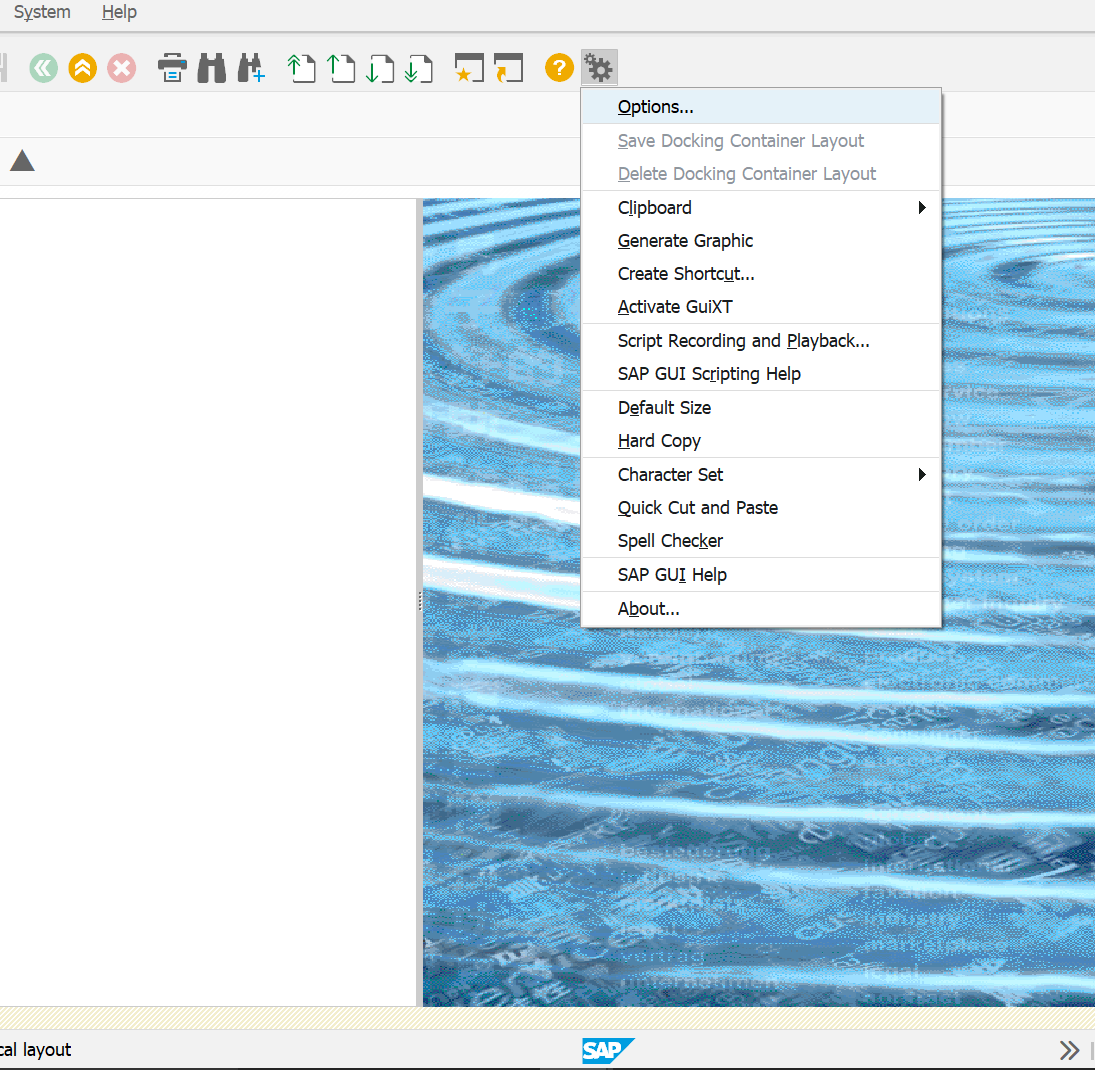
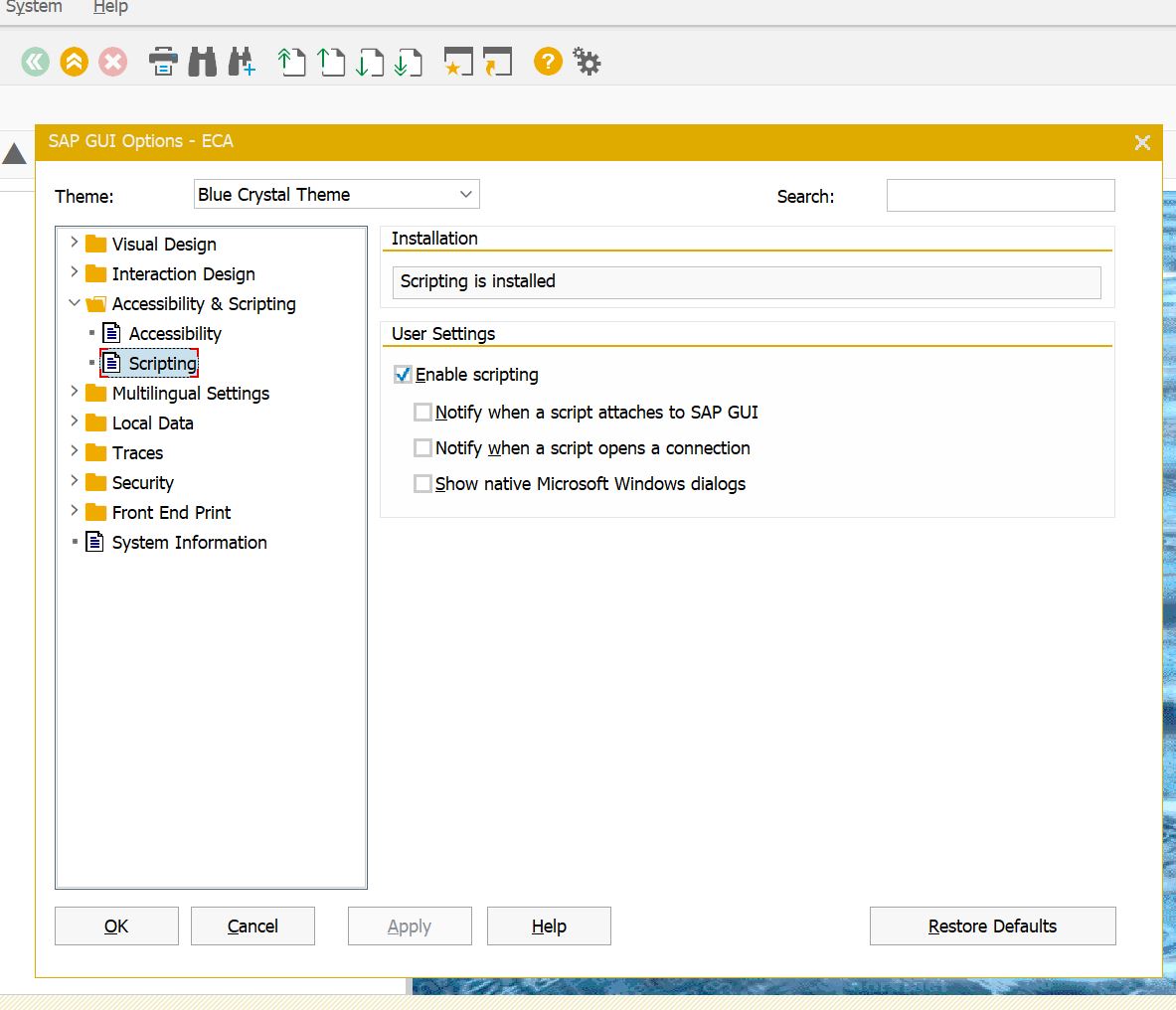
- Navigate to the "Accessibility & Scripting" folder, then "Scripting"
- Check the "Enable scripting" box
- Uncheck the three other boxes to disable pop-up windows during macro execution
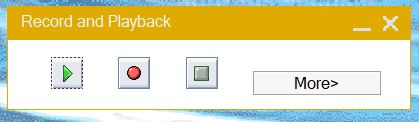
Once macros are activated, the "Script Recording and Playback" submenu becomes accessible.
Control buttons
- Green button: executes a macro
- Red button: records a macro
- Gray square button: stops macro recording
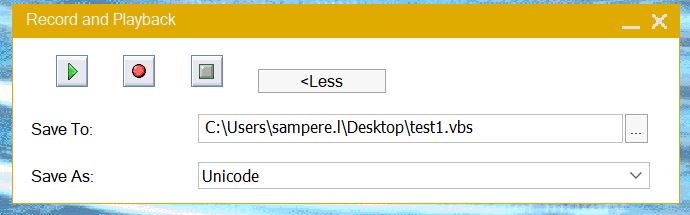
Advanced options (click "more")
- "Save to": full path where the macro is saved with its name and extension
- "Save As": script encoding (do not modify)
2. Record your first SAP GUI macro
Follow these steps to record your first macro:
- Plan your actions in advance before starting the recording
- Click the red button to begin recording
- Enter the transaction and perform the desired operations
- Rewrite fields containing data (even if identical) so you can modify them later
- Press the gray square button when you're done
- The macro automatically saves to the specified location
Execution
Click the green button, select the saved file to launch the macro directly.
3. Modify your macro to fit your needs
To modify the macro:
- Right-click on the macro file
- Select "Edit" to open it in Notepad
Code structure
The values between quotation marks represent the fields you filled in during recording. You can modify these values directly without re-recording the entire macro.
Important: Save your changes with CTRL+S after each modification.
Going further
In part 2, we'll see how to connect SAP GUI macros to Excel sheets to launch macros directly from Excel. Check out our article on Excel SAP GUI Macros to learn more.


