
Schedule SAP Macros With The Task Scheduler
Introduction
Want your SAP macros to run automatically, without manual intervention? Windows Task Scheduler lets you launch your VBS scripts at specific times, even when you're away from your computer.
If you want to schedule only the SAP macro (VBS file) without the Excel VBA macro, skip directly to Step 2.
Step 1: Create the VBS File
Create a new text document and insert the following script:
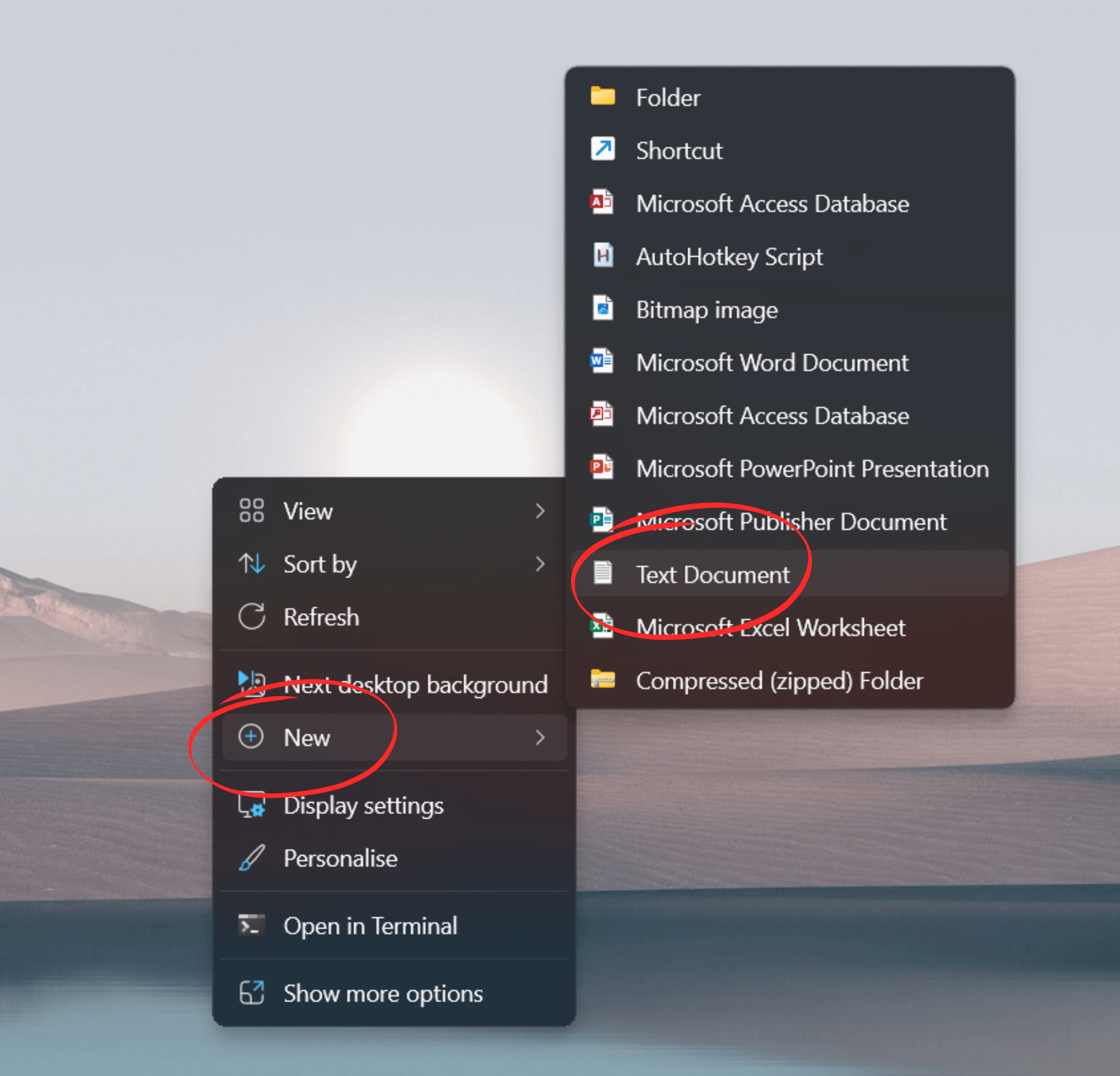
'Input Excel File's Full Path
ExcelFilePath = "C:\Users\Lucas\Desktop\sap_macro_schedule_exemple.xlsm"
'Input Module/Macro name within the Excel File
MacroPath = "macro_module.schedule_sap_macro"
'Create an instance of Excel
Set ExcelApp = CreateObject("Excel.Application")
'Do you want this Excel instance to be visible?
ExcelApp.Visible = True
'Prevent any App Launch Alerts
ExcelApp.DisplayAlerts = False
'Open Excel File
Set wb = ExcelApp.Workbooks.Open(ExcelFilePath)
'Execute Macro Code
ExcelApp.Run MacroPath
'Save Excel File
wb.Save
'Reset Display Alerts Before Closing
ExcelApp.DisplayAlerts = True
'Close Excel File
wb.Close
'End instance of Excel
ExcelApp.Quit
'Leaves an onscreen message
MsgBox "Your Automated Task successfully ran at " & TimeValue(Now), vbInformation
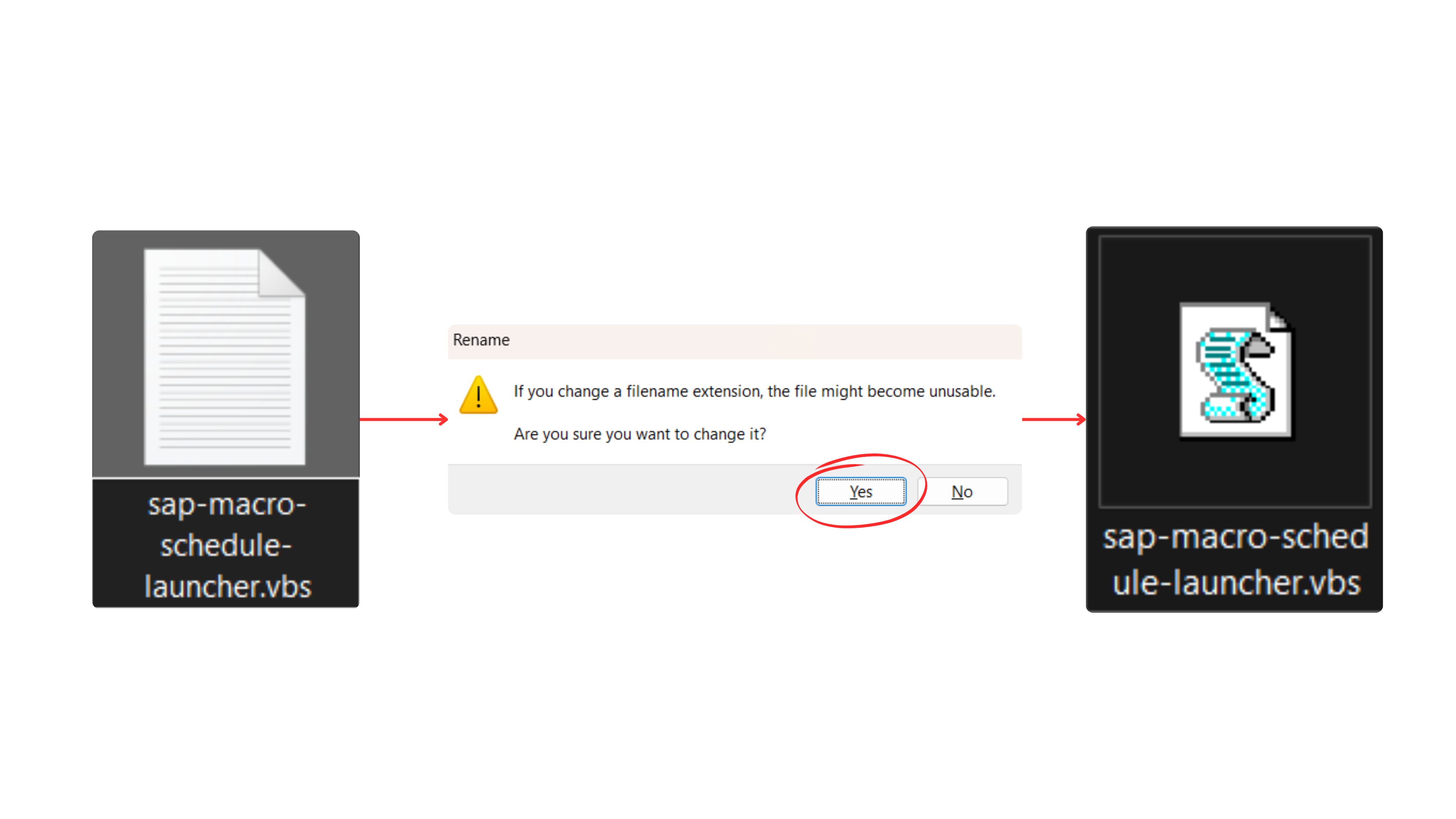
Save as .txt, then rename the file extension to .vbs.
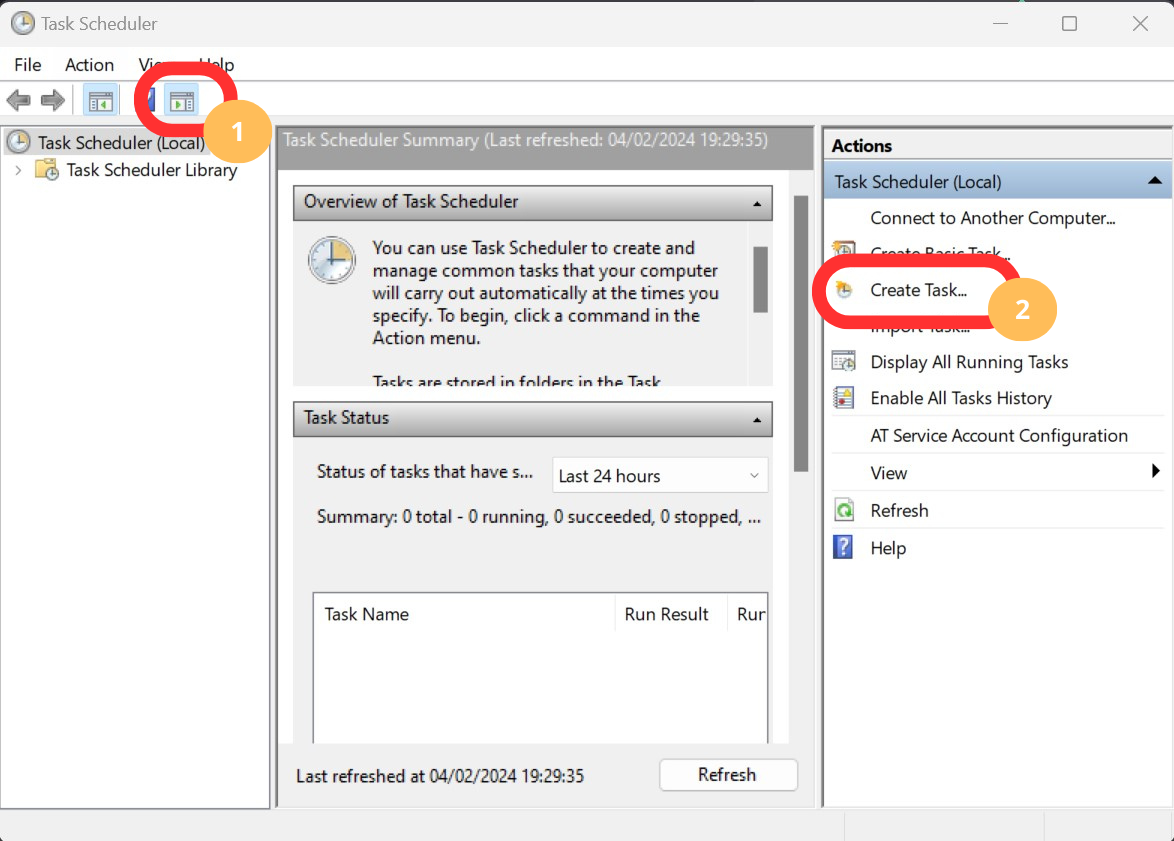
Step 2: Open Task Scheduler
Click the taskbar icon to access Windows Task Scheduler. Select "Create Task."
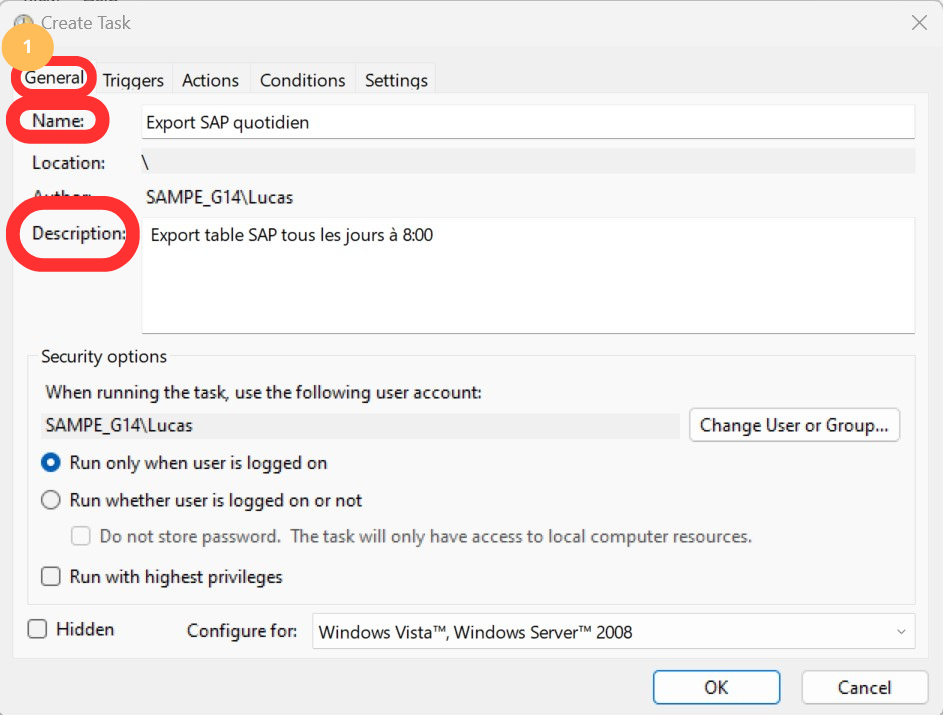
Step 3: General Configuration
Enter a descriptive task name and add details in the description field.
Step 4: Trigger Settings
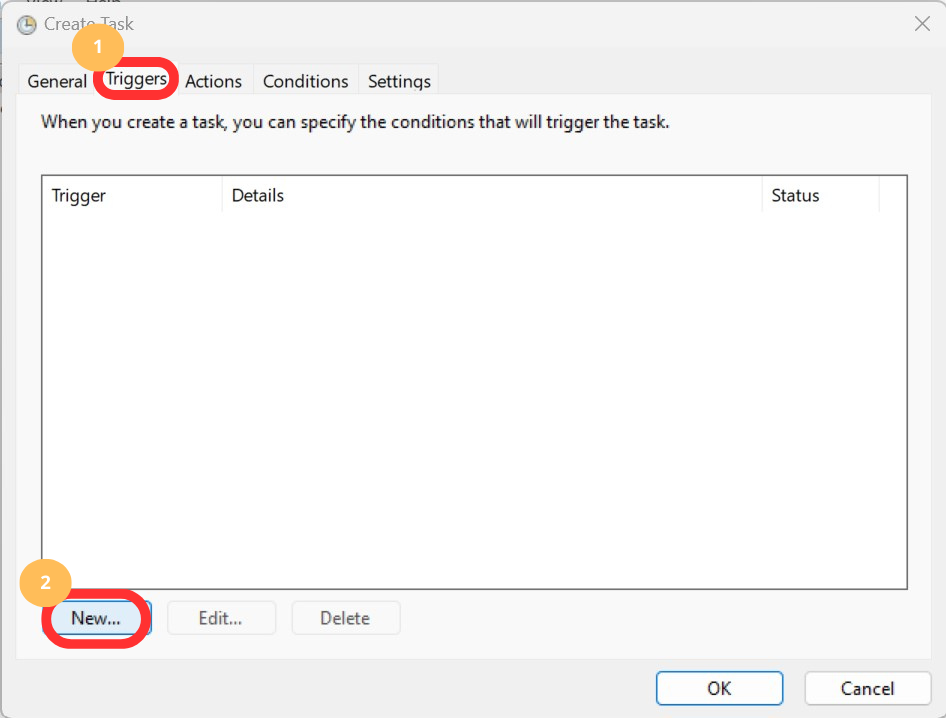
Navigate to the Triggers tab, click New, and specify your desired execution dates and times.
Step 5: Action Configuration
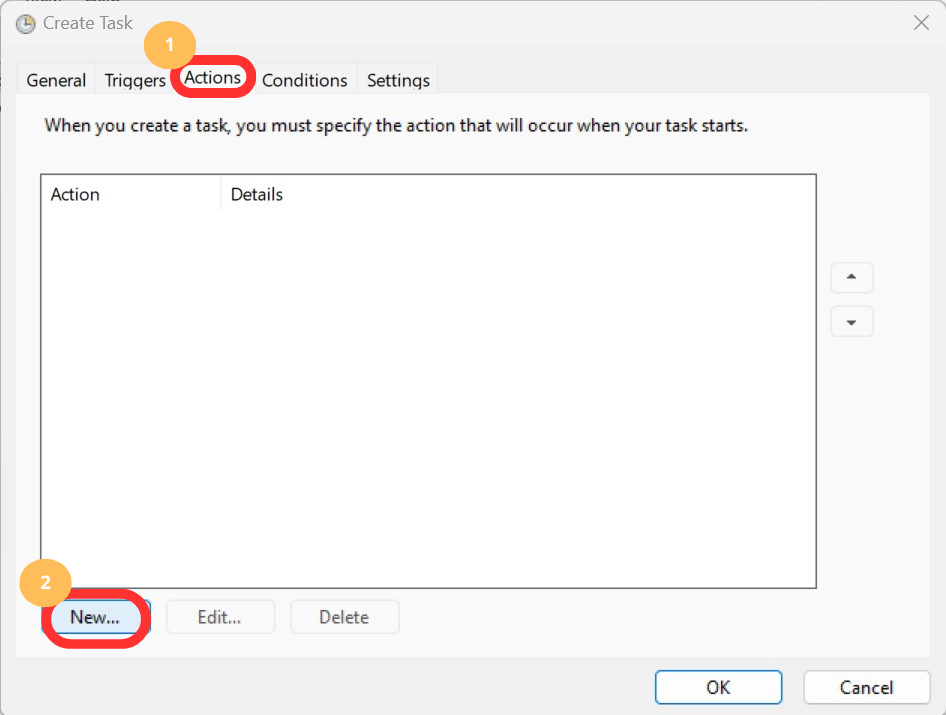
Under the Actions tab, create a new action:
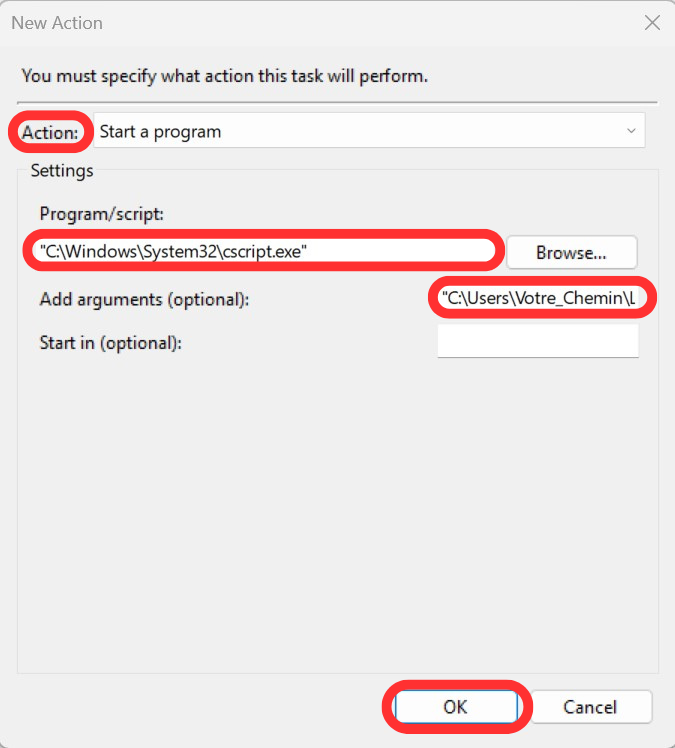
- Program/script:
C:\Windows\System32\cscript.exe - Add arguments: Enter your VBS file's full path
Your SAP macro will now run automatically at the configured schedule.


